The schedule is where you plan who works where and when. You can create shifts one at a time, repeat them over several weeks, or build them from templates. You can then move them around and assign staff by dragging.
To open it, go to Schedules → Schedule.
If you can see the calendar but can't click on it, your role lets you view the schedule but not change it. Ask an account owner to update your permissions in Team Management → Roles & Permissions.
The calendar
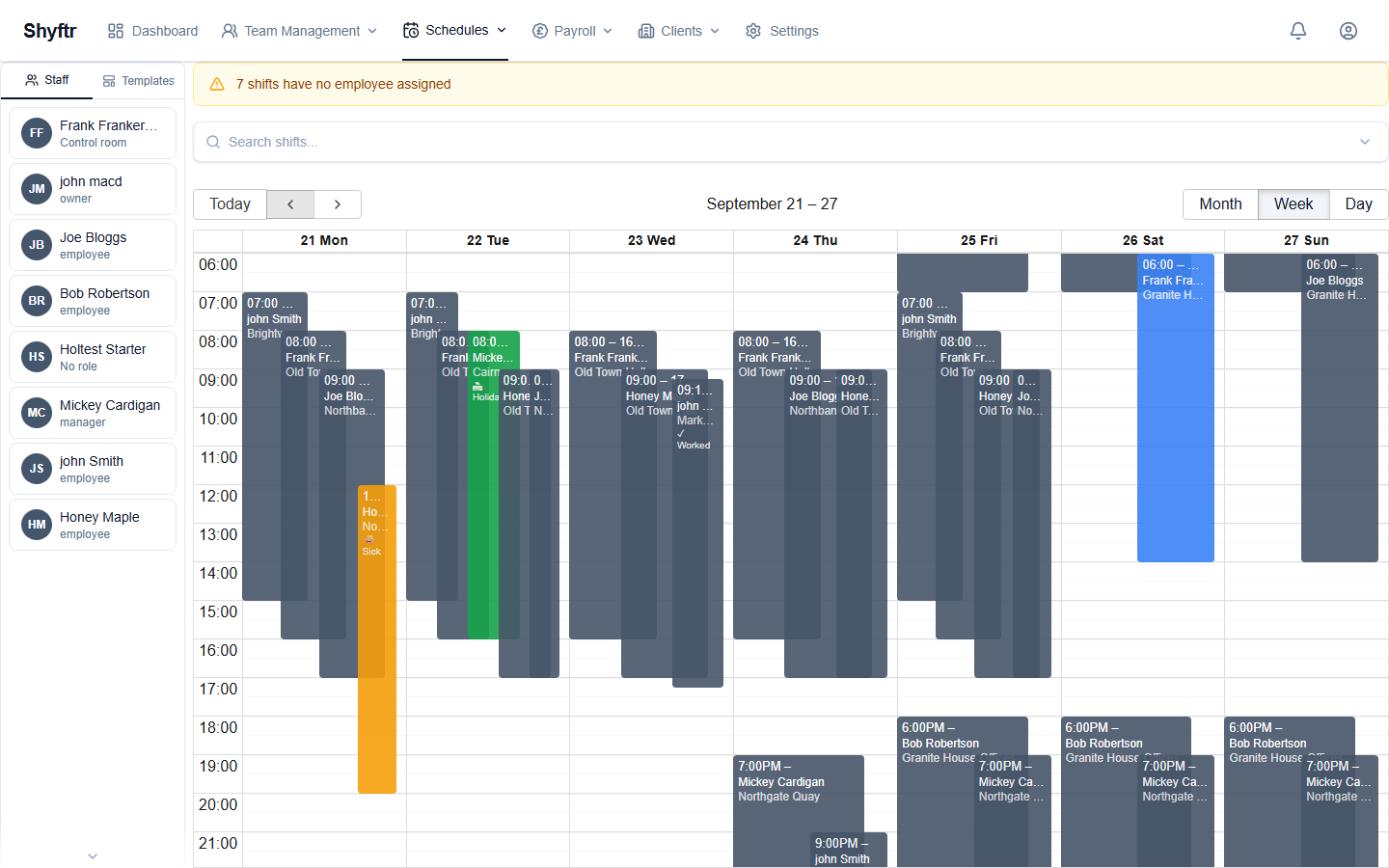
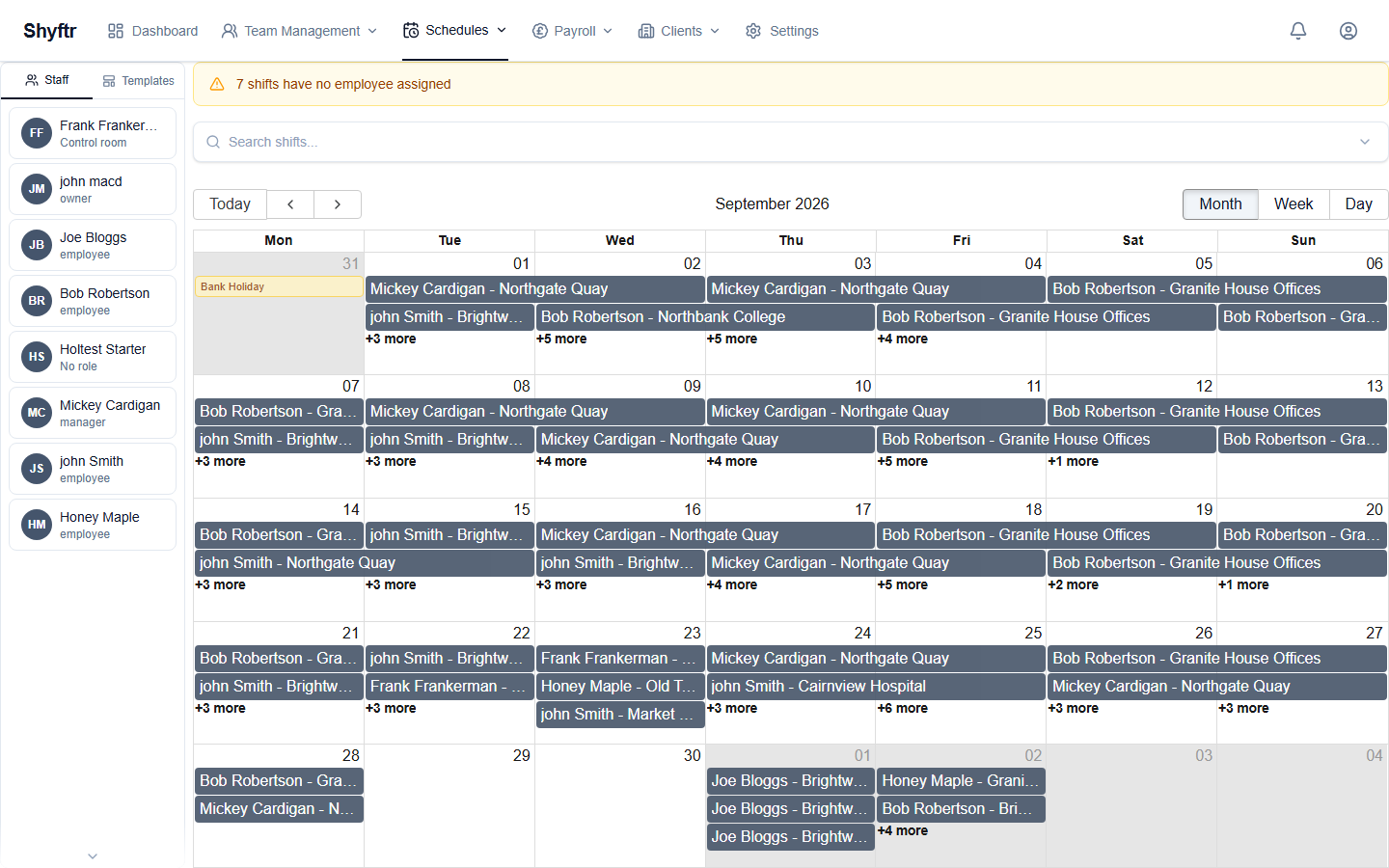
The calendar opens in Week view, with weeks running Monday to Sunday. Use the buttons at the top right to switch views:
- Month shows the whole month. Each shift appears as a bar with the employee's name and client site. Bank holidays for your company's region (England and Wales, Scotland or Northern Ireland, set under Payroll → Overview) are marked with a yellow Bank Holiday label. You'll only see these labels in month view.
- Week shows seven days with the time down the left-hand side. Each shift shows the employee, the client site and a short status label.
- Day shows one day in the same layout as week view.
To move around the calendar:
- Today takes you back to the current day, week or month.
- The arrow buttons move back or forward one day, week or month, depending on the view.
Shyftr loads shifts as you move through the calendar. If you jump a long way, you may see Loading shifts... in the corner for a moment.
Creating a shift
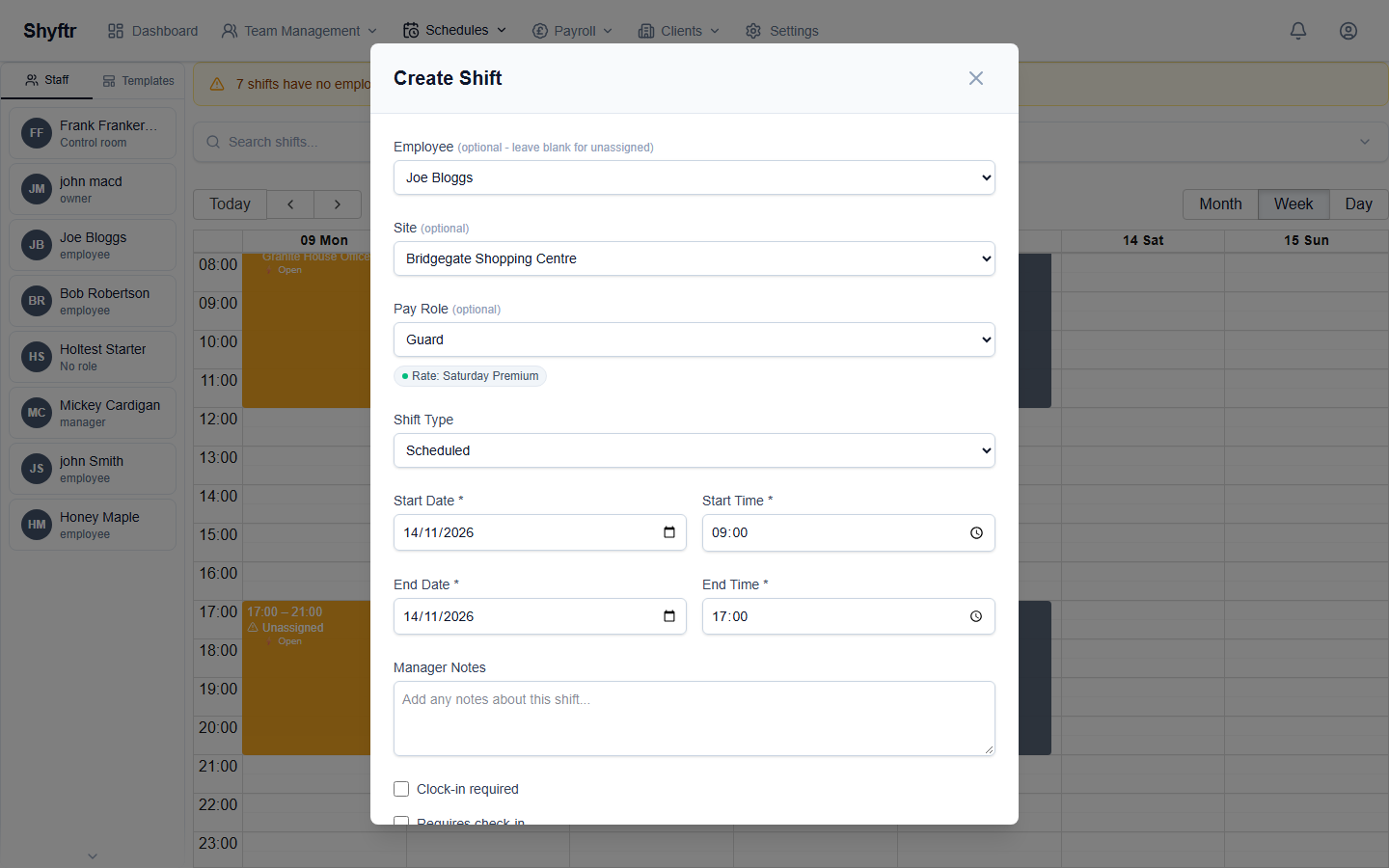
- Click an empty space on the calendar, on the day and at the time you want the shift to start. The Create Shift form opens with an eight-hour shift starting at that time. In month view, the shift starts at 08:00.
- Choose an Employee, or leave it as Unassigned to create an open shift that someone can cover later.
- Choose the Site. This is the client site the shift is for. The list shows your active clients from Clients.
- If the employee is paid by the hour, choose a Pay Role (see Pay role and rate below).
- Check the Shift Type. For a normal upcoming shift, leave it as Scheduled.
- Check the Start Date, Start Time, End Date and End Time.
- Add any Manager Notes about the shift.
- Set the clock-in and check-in options (see below).
- Click Create Shift.
Overnight shifts
For a shift that finishes after midnight, set the End Date to the next day. If the end is before the start, Shyftr won't save the shift. It will ask you to set the end date to the next day.
Pay role and rate
The Pay Role box appears when you've chosen a site and an employee who is paid by the hour, whether they're a field worker or on a fixed hourly rate. It lists the roles set up for that site in Payroll → Pay Rates. If there are none, you'll see a link to add them. Salaried staff don't have a pay role: their pay doesn't depend on the shift.
When you pick a role, a label shows which rate will apply:
- Standard on weekdays
- Saturday Premium or Sunday Premium at weekends
- Bank Holiday Premium on a bank holiday
Where the rate comes from depends on how the employee is paid:
- Field workers are paid the role's rate: its base rate plus any premium for the day. Without a pay role, the shift has no rate.
- Fixed hourly staff are paid their contract rate, set on their profile in Team. If you pick a pay role, the day's premium is added to that rate; the role's base rate is ignored. Without a pay role, they're paid their contract rate with no premium. Pay runs pay the shift's rate, premium included.
The rate is fixed when you save the shift. It's based on the day the shift starts. An overnight shift from Saturday into Sunday is paid at the Saturday rate for the whole shift. If you change the employee or the role, or move the shift to a different day, Shyftr works out the rate again. The exception is shifts that have already been approved or paid in a pay run: their rate stays the same, unless the shift has no rate yet (see below).
If a field worker's shift has no pay role, or a fixed hourly employee has no contract rate on their profile, an amber note on the form tells you so: No pay role selected or that the employee has no contract rate set. The shift still saves, but it has no rate for payroll (see Shifts with no pay rate).
If a shift with a role crosses midnight, you'll see a warning. If the rate changes at midnight, think about splitting it into two shifts.
Shifts with no pay rate
A shift with no rate for payroll is one that payroll can't price: a field worker's shift without a pay role, or a fixed hourly employee's shift when there's no contract rate on their profile. Shyftr never stops you saving one, because the rota often has to go out before the pay details are sorted. Instead it keeps reminding you until it's fixed:
- On Payroll → Approvals, the shift is marked Unpriced, and the employee's group shows how many of their shifts are.
- When you create a pay run, any unpriced shifts in the period are listed in a warning at the top of the run, before you export. Those shifts go into the run at £0.
The best time to fix an unpriced shift is when Payroll → Approvals flags it, or when the draft pay run lists it. For a field worker's shift, open it on the rota and choose a Pay Role; for a fixed hourly employee, add their contract rate in Team. A shift that has no rate can be given one even after it's been approved, because there's nothing to protect; once a shift has been paid in a pay run its rate never changes.
A pay run keeps the figures it was created with. If you give a shift a rate after creating a draft run, delete the run and create it again so the new rate is used, or add a manual adjustment to the run instead. The warning on a draft run shows the shifts as they stand now, so it disappears once you've fixed them even though the run's totals haven't changed until you recreate it.
Shift type
Most shifts are Scheduled. You can also record an absence against a shift:
- Absent (Unpaid): no pay for this shift.
- Absent (Paid – Sick): paid as sick leave.
- Absent (Paid – Holiday): paid as holiday.
When you choose an absence, a note explains how it affects pay. Pay runs pay scheduled hours for the whole period, including shifts not yet worked, so if you mark a shift as Absent (Unpaid) after it has been paid in a pay run, Shyftr flags it and the next run takes the pay back. The same happens when you clear the employee from a paid shift or shorten it; a paid shift can't be deleted. See How pay runs work.
Clock-in and check-in options
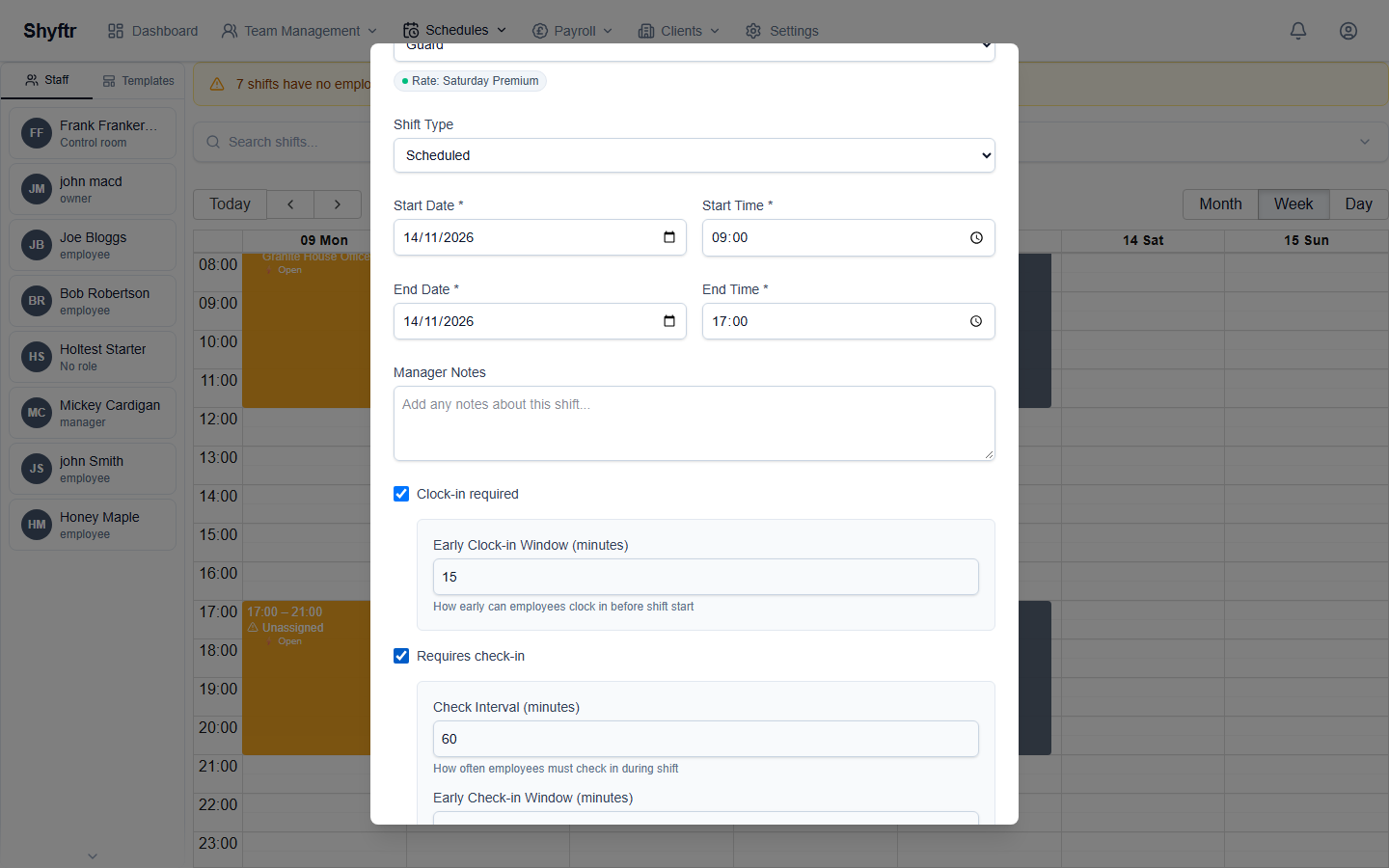
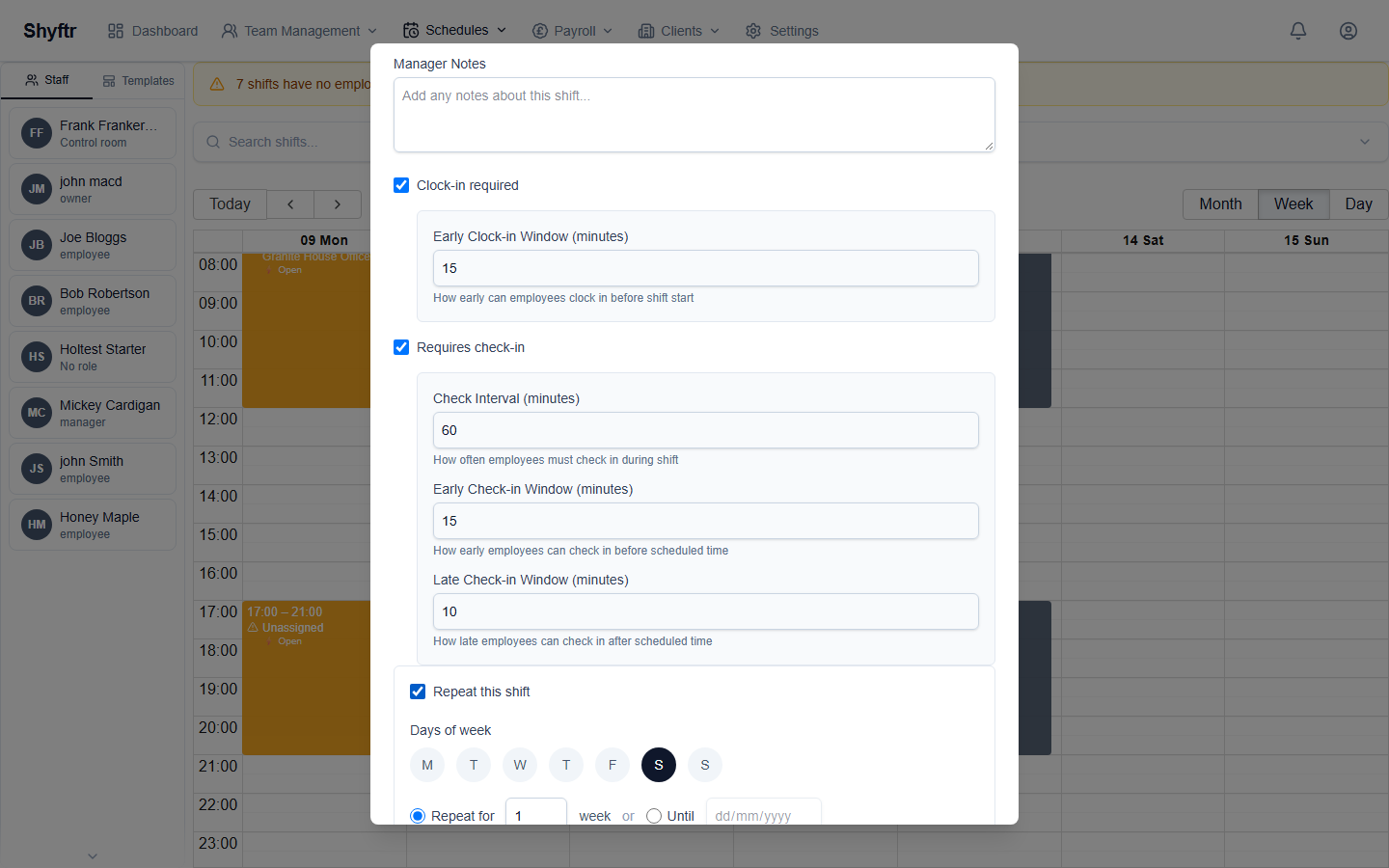
- Clock-in required: the employee must clock in on the app when the shift starts. Early Clock-in Window sets how many minutes early they can clock in (15 by default).
- Requires check-in: the employee must check in regularly during the shift. You can set:
- Check Interval: how often they must check in, in minutes (60 by default).
- Early Check-in Window: how many minutes early each check-in can be made (15 by default).
- Late Check-in Window: how many minutes late each check-in can be made (10 by default).
When you choose a site, these timings change to that site's defaults. You can still change them for this shift.
Recurring shifts
When you create a shift, you can repeat it over the following weeks.
- Fill in the Create Shift form for the first shift.
- Tick Repeat this shift.
- Under Days of week, choose the days the shift should repeat on. The day of the first shift is already selected.
- Choose when the pattern ends:
- Repeat for a number of weeks (1 to 12), counted from the first shift's date. For example, a Tuesday-only pattern that repeats for 4 weeks gives four Tuesday shifts.
- Until a date, up to 12 weeks after the first shift. Shifts are created up to the day before this date.
- Click Create Shifts. A message tells you how many shifts were created.
Each shift in the series gets the same start time, length, employee, site and options. Its rate is based on its own day, so weekend and bank holiday shifts in the series get the right premium.
A few things to know:
- The first shift is always created on the date you entered, even if you untick its day.
- Shyftr doesn't check repeating shifts against approved holidays. Check that nobody in the series is on holiday.
- Changing one shift in a series only changes that shift.
- When you delete a shift that's part of a series, you can choose Delete this shift only or Delete all shifts in this series. Deleting the series removes every shift in it that hasn't been worked. Shifts that have been worked stay.
Shift templates
A template saves the details of a shift you use often, such as "Night patrol, 22:00 to 06:00, clock-in required". You can then place it on the calendar in one step.
Creating a template
- Go to Schedules → Shift Templates.
- Click Add template.
- Enter a Template name and pick a Colour. Shifts made from the template use this colour on the calendar.
- Optionally choose a Default employee and Default site.
- Set the Start time and End time. If the end time is earlier than the start time, Shyftr treats it as an overnight shift.
- Tick Require clock-in or Require check-in during shift if needed, and set the timings.
- Add any Notes.
- Click Create template.
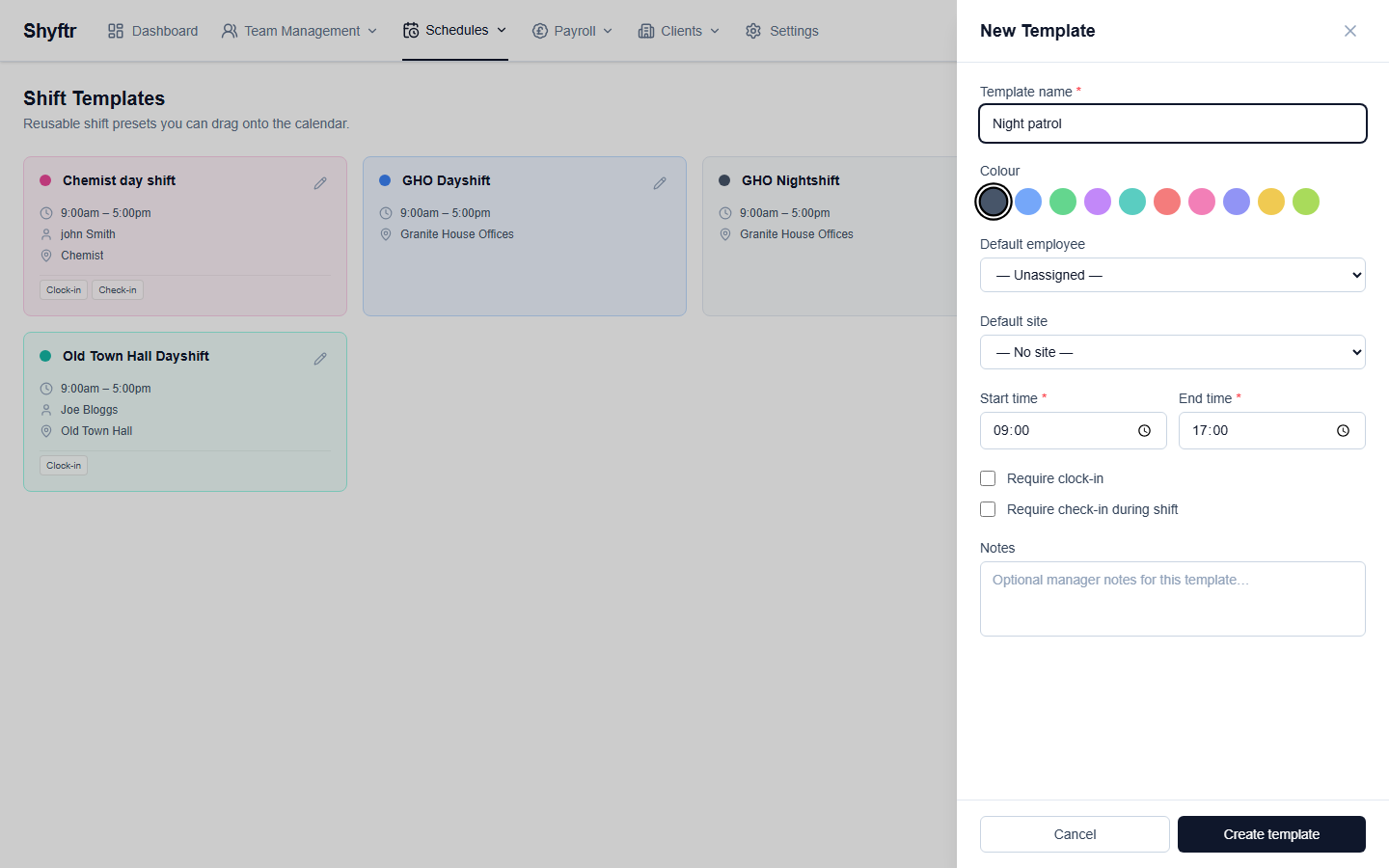
To change or delete a template, click the pencil icon on its card. Changing a template doesn't change shifts you've already created from it.
Using a template
There are two ways to use a template:
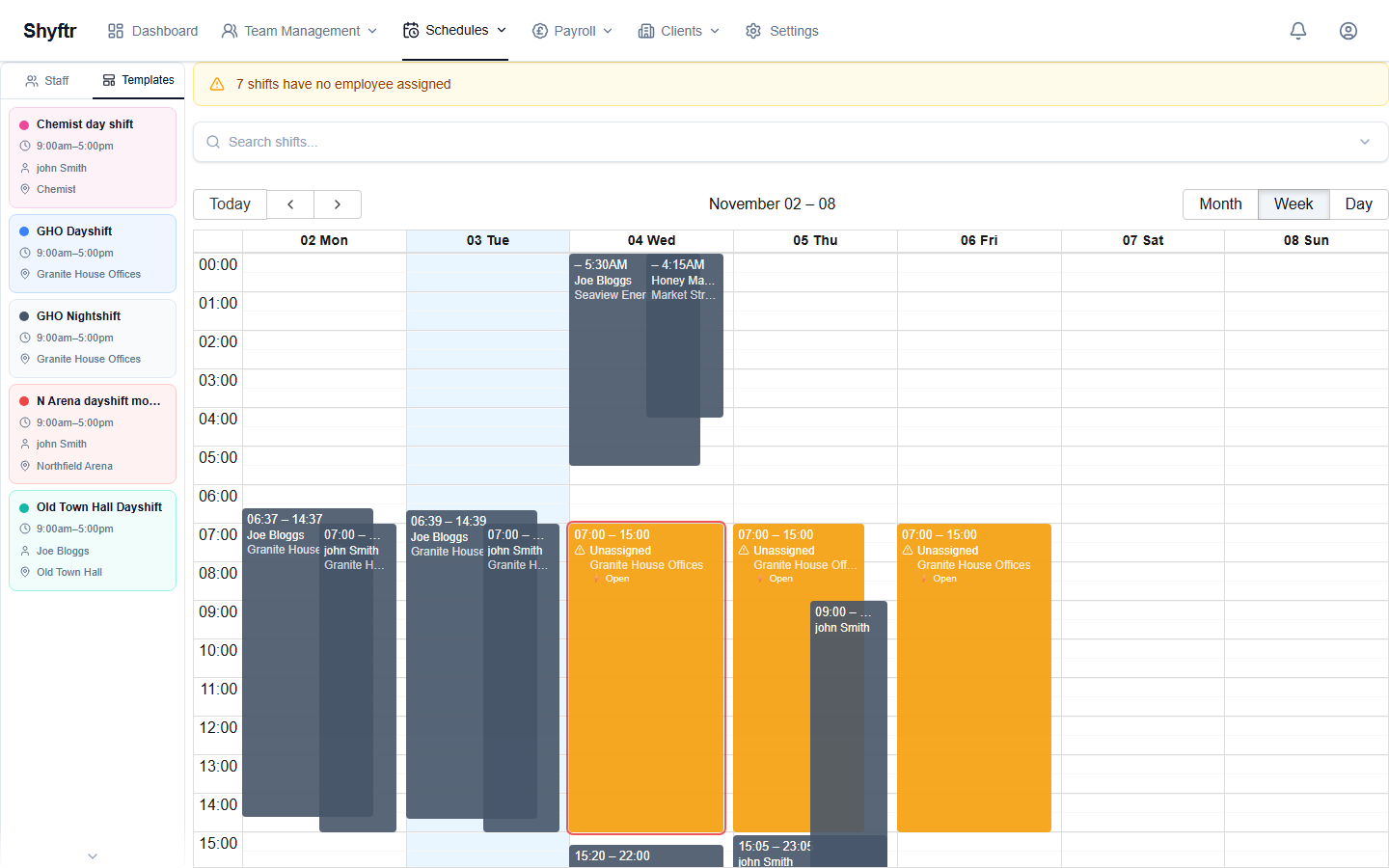
- Drag it onto the calendar. Click the Templates tab above the staff list and drag a template onto a day. The Create Shift form opens with the template's details and the day you dropped it on. The times always come from the template, whatever time you dropped it at.
- Pick it in the Create Shift form. After you choose a site, the templates for that site appear as buttons under it. Click one to fill in its times, employee, options and notes.
Either way, check the details and click Create Shift. Nothing is saved until you do.
Moving and resizing shifts
- To move a shift, drag it to a new day or time. This works in all three views.
- To change a shift's length, drag its top or bottom edge in week or day view.
The change is saved as soon as you let go. There's no confirmation step. If it can't be saved, a red message appears above the calendar for a few seconds and the shift stays where it was.
If you move a shift to a different day, its pay rate is worked out again for the new day. The exception is shifts that have been approved or paid.
If the move would put the shift inside the employee's approved holiday, Shyftr won't make the change. To schedule them anyway, open the shift, change the date there and give a reason (see Holiday conflicts).
Assigning staff by dragging
The Staff tab on the left lists your employees with their role. You can drag a name onto the calendar:
- Onto an existing shift: Shyftr asks Assign Employee to Shift? If someone else already has the shift, it tells you they'll be replaced. Click Confirm.
- Onto an empty space: the Create Shift form opens with that employee filled in. In week and day view, a blue line shows the start time as you drag. The shift lasts eight hours. In month view, it starts at 09:00.
Assigning someone to an open shift changes it back to a normal scheduled shift.
Open shifts, colours and labels
An open shift is one with no employee. You'll get open shifts when you create a shift without an employee, or when an approved holiday frees up the employee's shifts.
The unassigned banner
If any open shifts start in the next seven days, a yellow banner above the calendar tells you how many there are, for example 3 shifts have no employee assigned. Click the banner to show only open shifts. Click Clear filter, or the banner again, to show everything.
Colours
| What you see | What it means |
|---|---|
| Template colour | The shift was made from a template. The template colour always wins over the colours below. |
| Dark grey | A normal assigned shift |
| Amber with a warning triangle | Open shift (no employee) |
| Red flashing outline | An open shift that starts within 24 hours, or has started and isn't finished |
| Green | Paid holiday |
| Amber | Paid sickness |
| Red | Unpaid absence |
Open shifts and sick shifts are both amber. Open shifts also have a warning triangle and are named Unassigned.
Labels
In week and day view, each shift can show a short label under the site name:
| Label | Meaning |
|---|---|
| 🏖 Holiday | Marked as paid holiday |
| 🤒 Sick | Marked as paid sickness |
| ⚠ Absent | Marked as unpaid absence |
| ✓ Worked | The shift has been worked |
| ⚡ Open | The shift was freed up by an approved holiday and needs cover |
Normal scheduled shifts have no label.
Search and filters

Type in Search shifts... to show only shifts where the employee's name or the site name contains your text.
For more control, click the arrow at the right of the search bar to open the filters:
- What: the shift type or status: Scheduled, Worked, Holiday, Sick, Absent (Unpaid) or Open (Unassigned).
- Who: one employee.
- Where: one client site.
Each filter you set appears as a tag under the search bar. Click the × on a tag to remove it, or click Clear to remove the search and all filters.
Holiday conflicts
When you save a shift for an employee, Shyftr checks whether the shift starts on a day of their approved holiday (UK time). Pending requests aren't checked. A night shift that starts the evening before a holiday and finishes on its first day isn't a clash.
If there's a clash, you'll see Employee Has Approved Holiday and what overriding would do to the holiday, for example This will reduce Joe's holiday (11–12 Nov) by 1 day. 1 day stays approved. You can:
- click Cancel and pick someone else, or
- type a reason (at least 10 characters) and click Override and Schedule.
Overriding takes that day off the holiday (the rest stays approved, or the holiday is cancelled if it was the last day), so the employee isn't paid holiday for a day they work. Their original shift that day, freed when the holiday was approved, isn't given back: the shift you're saving replaces it, and the original stays open for cover. Shyftr saves your reason with the shift and on the holiday. See Changing an approved holiday.
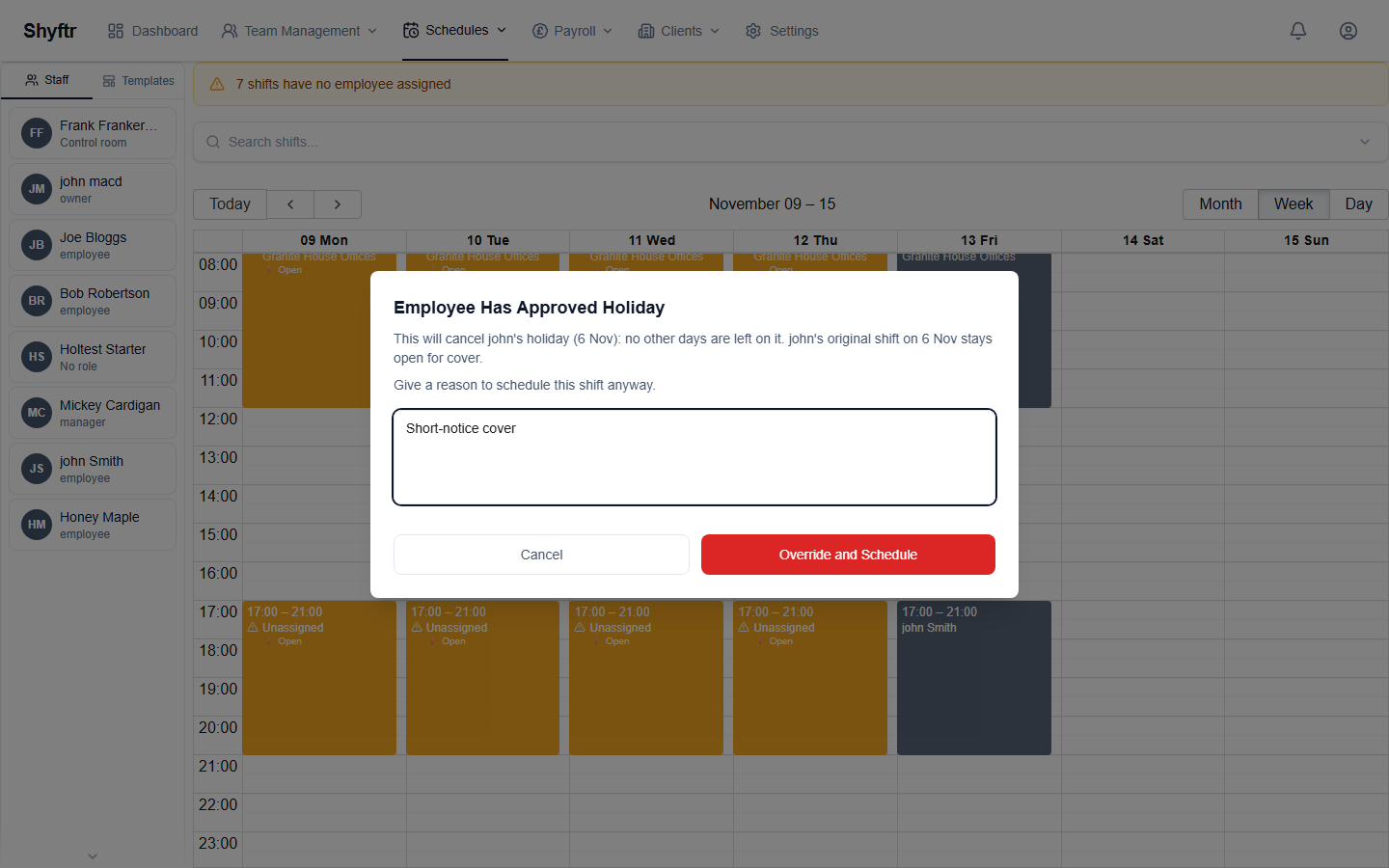
This check happens when you create or edit a shift in the form, and when you drag a staff member onto a shift. It isn't done for:
- recurring shifts (see Recurring shifts)
- shifts that are already in the past
When you drag and drop an existing shift onto holiday dates, the move is refused, and you don't get the option to override it there.
Logging a shift that already happened
Sometimes you need to record a shift after it has happened. For example, someone covered at short notice and it was never put on the schedule.
- Click the calendar on the day the shift happened, or any day, and change the dates in the form.
- Enter the employee, site and times as normal.
- When the shift's end is in the past, a blue Retrospective shift entry box appears. It tells you the shift will be marked as worked and approved.
- Optionally enter the Actual Clock-In and Actual Clock-Out times. Leave them blank to use the scheduled times.
- Click Create Shift.
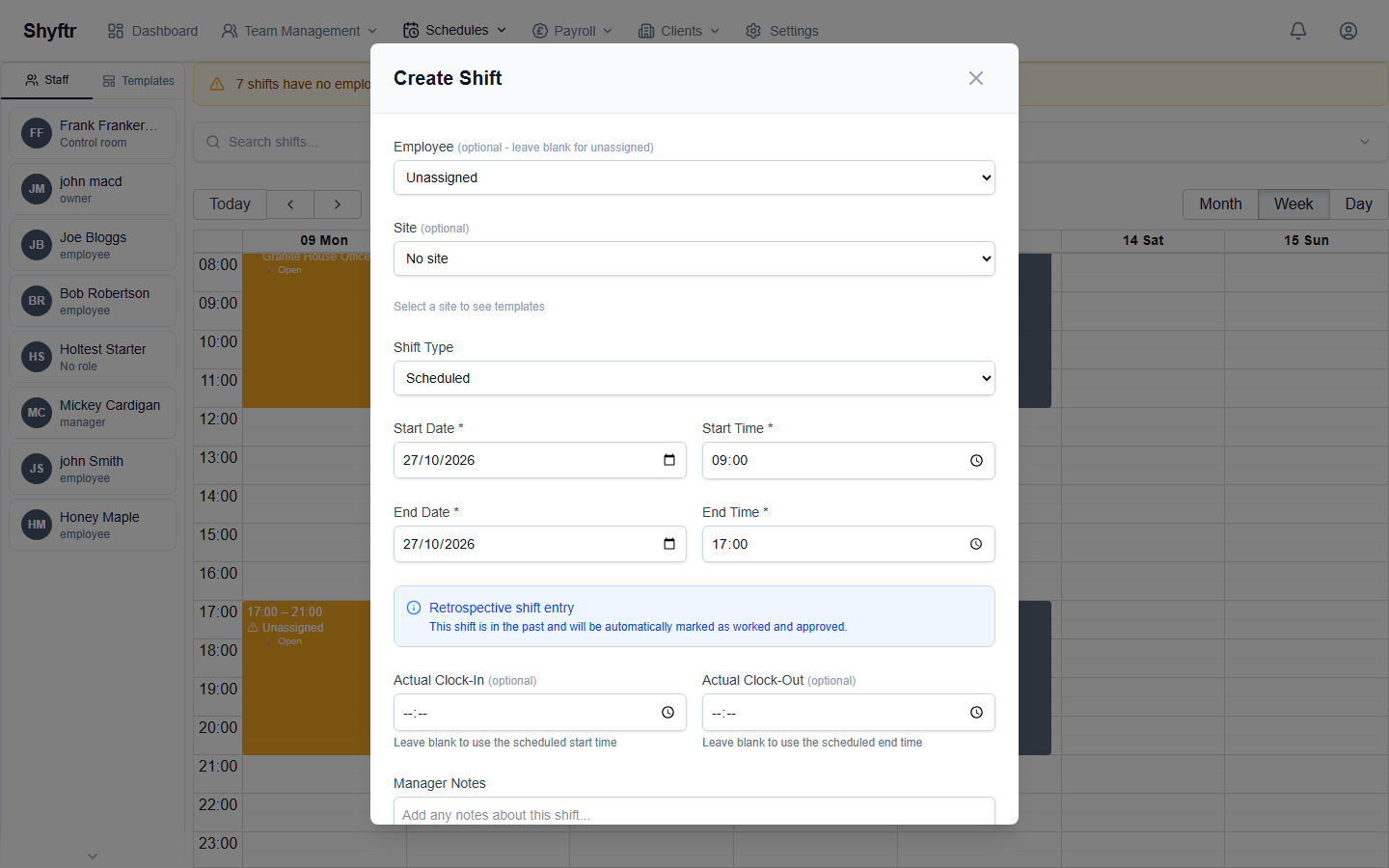
For a past shift, the clock-in, check-in and repeat options are hidden. The shift is always saved as Worked, whatever you choose in Shift Type. To record a past absence instead, create the shift, then open it and change the shift type.
To review shifts that have already finished, including missed clock-outs, go to Schedules → Past Shifts.
Clock-out requests
Staff clock out on the app while they're at the site. If they've already left the site area when they remember, the app won't let them clock out. Instead they can tap I've left site – request clock-out. This doesn't clock them out. It records the time they asked and how far from the site they were, and leaves the shift open for you to close.
Where you'll see a request
- Dashboard: the Pending Clock-Outs card counts the same shifts as Past Shifts → Requires Attention (ended, not clocked out, and someone was expected to clock in, so not absences, open shifts or shifts with no clock-in required), and shows how many have a request, for example 3 · 1 requested.
- Dashboard → Currently On Site: as soon as the request is made, even if the shift hasn't reached its end time yet, the shift card shows a Clock-out requested 22:05 · 3.2 km badge and a Clock out at requested time button.
- Schedules → Past Shifts → Requires Attention: once the shift has ended, it's listed here with a line like Requested clock-out at 22:05 · 3.2 km from site. Shifts with a request are sorted to the top.
Times are UK time. The distance is shown in metres under 1 km, otherwise in kilometres.
Requested early
If the employee asked to clock out more than 15 minutes before the shift's scheduled end, the request is shown in amber as Requested early. If you clock them out at that time, the shift is flagged as an early clock-out, in the same way as when someone clocks out early on the app, so it shows in the early clock-out review and on the payroll approval card.
Closing the shift
Open the shift and go to the Clock Out section. You have two options:
- Clock out at requested time: one click. The clock-out time is the time the employee asked for, and the manager note is filled in as Clocked out at employee's requested time (3.2 km from site).
- Clock Out on Behalf: opens the usual form. The Clock-out time is pre-filled with the requested time, and the note with the text above. Change either if you need to. Leave the time blank to clock out at the current time.
The clock-out time must be after the employee clocked in and can't be in the future.
On the dashboard, the Clock out at requested time button on the shift card does the same as the one-click option, without opening the shift.
Shifts that were never clocked in
If you clock out a shift that the employee never clocked in to, Shyftr can't tell whether they worked it. The shift is marked with a red No clock-in recorded badge on Schedules → Past Shifts and listed in its own section at the top of Payroll → Approvals, where you decide:
- Approve as worked: the employee did work. The clock-in is set to the scheduled start, the shift is marked as worked and approved, and a note is added. Pay is at the scheduled hours, as for any shift.
- Mark absent: they didn't work. The shift becomes an unpaid absence, the clock-out is removed and the shift is approved so it leaves the list.
These shifts are left out of Approve All, and they stay in the list until you decide, even if the shift was already approved. Shifts with No clock-in required and absences don't need this: they appear on Approvals once the shift has ended and can be approved as normal.
If nobody acts on the request
Shyftr closes forgotten shifts automatically six hours after the scheduled end. A request doesn't change when that happens. It's still worth closing the shift yourself, because the automatic clock-out records the shift as ending at its scheduled end time, and it's marked Auto so payroll can check it.
Common questions
Why can't I delete a shift? Shifts that the employee has clocked in to can't be deleted, because they've been worked. You'll see This shift has been worked and cannot be deleted.
I dragged a shift to the wrong place. How do I undo it? There's no undo. Drag it back, or open it and correct the date and times.
Why didn't I get a holiday warning when I set up a repeating shift? Repeating shifts aren't checked against approved holidays. Check the employee's holidays in Schedules → Holidays before you set up a long series.
Why is a shift showing "⚡ Open"? The employee who had it has had holiday approved for that day, so the shift was freed up for someone else to cover. Drag another staff member onto it to fill it.
Why doesn't the Pay Role box appear? It only appears when you've chosen both a site and an employee who is paid by the hour, either a field worker or someone on a fixed hourly rate. Salaried staff don't have one. The site also needs roles set up in Payroll → Pay Rates. For a fixed hourly employee, the role only adds weekend and bank holiday premiums to their contract rate, so it's fine to leave it blank if they don't get premiums.
A shift is marked "Unpriced" on the Approvals page. What does that mean? Payroll has no rate for it, so it would be paid at £0. See Shifts with no pay rate for how to put it right.
I edited a template. Why haven't my shifts changed? Templates are only used when you create a shift. Shifts you've already created keep their own details.
Why don't I see bank holidays in week view? Bank holidays are only shown in month view. The pay rate still uses the bank holiday premium whichever view you're in. Which days count as bank holidays follows the region set under Payroll → Overview.
An employee says they requested a clock-out, but the shift still shows "Not clocked out". Why? That's expected. A request from the app doesn't clock the employee out. It tells you they've left and when. Open the shift and click Clock out at requested time, or clock them out with a different time (see Clock-out requests).